
Configuring Wireless ProfilesThis chapter explains how to use the Microsoft Vista Network and Sharing Center to create and manage profiles for your client adapter.The following topics are covered in this chapter:. Overview of Wireless ProfilesA wireless profile is a set of of configuration parameters that you (or your network administrator) can create and manage in the Microsoft Vista user interface. You can connect to a wireless network with the profile, which includes the wireless network name, the network security type, the network encryption type, and other feature configurations.You can create several different profiles that enable you to connect to wireless networks in different locations. For example, you might want to create and manage profiles that allow you to use your client adapter at the office, at home, and in public areas, such as airport terminals.
After the profiles are created, you can switch between them without having to configure your client adapter each time you move to a new location. Accessing Microsoft Vista Network and Sharing CenterTo create and manage wireless profiles, you must access the Microsoft Vista Network and Sharing Center.To access the Network and Sharing Center window, follow these steps:Step 1 Double-click the networking icon (two computer monitors) in the system tray at the bottom right corner of the screen. A small dialog box appears (see ).Figure 2-1 Networking Icon in System TrayStep 2 Click Network and Sharing Center. The Network and Sharing window appears (see ).Figure 2-2 Network and Sharing Center WindowStep 3 To set up a wireless profile, click Set up a connection or network in the Tasks area.Note You can also access the Network and Sharing Center by choosing Start Control Panel Network and Sharing Center.Creating a New Profile and Configuring Basic SettingsTo create a wireless profile, follow these steps:Step 1 Open the Network and Sharing Center window (see the ).Step 2 Click Set up a connection or network in the Tasks area.
The Set up a connection or network dialog box appears (see ).Figure 2-3 Set up a connection or network Dialog BoxStep 3 In the Choose a connection option area, click Manually connect to a wireless network.Step 4 Click Next. A Manually connect to a wireless network dialog box appears (see.)Step 5 From the Choose a wireless adapter drop-down list, choose the option for the Cisco Aironet 802.11a/b/g Wireless Adapter (see ).Note Client adapters might not be easy to identify in the Choose a wireless adapter drop-down list because the adapters might be generically named (for example, Wireless Network Connection or Wireless Network Connection 2). If you have multiple client adapters on your device, choose Network and Sharing Center Manage network connections. In the Views drop-down list, choose Details to see which generic name corresponds with which client adapter. When you view the details of available network connections, the client adapter is identified in the Device Name column.Figure 2-4 Manually connect to a wireless network Dialog Box—Choose a wireless adapterStep 6 Click Next.
Another Manually connect to a wireless network dialog box appears (see ).Figure 2-5 Manually connect to a wireless network Dialog Box—Enter information for the wireless network you want to addStep 7 In this dialog box, enter information for the wireless network that you want to add. Lists and describes general settings for the profile. Follow the instructions in the table to configure these settings.Table 2-1 Profile Management General SettingsSettingWhat to EnterNetwork nameEnter the service set identifier (SSID). The network name and the SSID are the same.Range: The network consists of 1 to 32 case-sensitive characters.Default: A blank fieldSecurity typeFrom the Security type drop-down list, choose the method that is used to secure a connection to the wireless network.
How can I disable wireless AP roaming in Vista. This option is available in Windows XP (see: ), but I have not been able to find it in XP.Basically, I have a couple of Vista boxes that regularly decide an AP 30 ft away is better than one 3 ft away and swapping to it. I need to force it to only connect to the AP 3 ft away.I have already tried maknig sure the prefered AP is at the top of the prefered list and also removing every other AP from the list. It still randomly swtiches to a different AP. I'm kinda flying blind here without a vista box.
Vista Wireless Roaming Internet
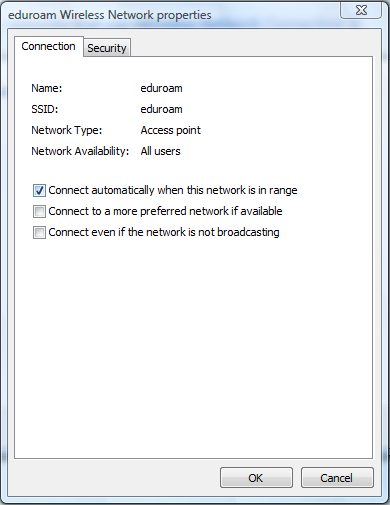
But in XP there's an option on the Connection tab in the Properties of the 'preferred network' and if you uncheck that option it does not connect automatically. And win7 has a similar option, on the Connection tab when you choose to Manage the network, called Connect automatically when network is in range. If you UNcheck that option it connects to that network only when told to. Of course, if they're the same SSID but using different channels you would need to use a 3rd party connection manager, or filter them out in 30-ft-away AP.
Vista Wireless Connection
Because windows wireless zero config/WLAN autoconfig does not let you specify a preferred channel.Anyway, look for a similar setting (Connect automatically.) to uncheck in vista when managing the wireless networks.